
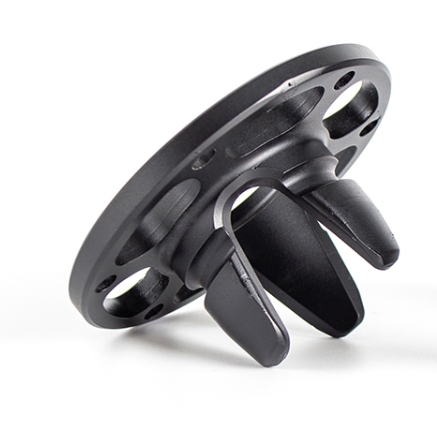
3D printing has evolved from a niche prototyping tool into a robust manufacturing powerhouse. We can now print everything from biocompatible medical implants to aerospace-grade engine components. However, there is a hard truth every product engineer knows: a stunning digital render does not always translate into a physical object. If your model lacks structural integrity or contains “impossible” geometry, the printer will fail, wasting time, power, and expensive thermoplastic or resin. To bridge the gap between a digital vision and a functional product, you must adhere to a specific set of geometric and topological rules. This guide serves as a checklist for designers and manufacturers to ensure that every “Print” command results in a high-quality, production-ready part.
Why Is Object Thickness the Core of Structural Stability?
In the world of additive manufacturing, thickness is more than just a dimension; it is the difference between a part that functions and one that collapses under its own weight. If walls are too thin, they lack the cross-sectional area necessary to bond layers effectively, leading to delamination or warping.
How do support and non-support walls differ?
When designing, you must distinguish between the permanent structure of the part and the temporary supports. Support walls—the sacrificial structures that hold up overhangs—require a minimum thickness of 0.4mm to stay upright during the build. Non-support walls, which form the actual product, should never fall below 0.6mm.
Case Study: The 0.3mm Phone Case Failure
A startup recently attempted to disrupt the accessories market with “ultra-slim” 3D printed phone cases. To save on PLA filament costs, they designed the walls at 0.3mm. The result? A 70% failure rate due to thermal stress causing the cases to crack during cooling. By increasing the wall thickness to 0.6mm—just a 0.3mm difference—they achieved a 98% success rate and a significantly more durable product.
| Wall Category | Min. Thickness | Primary Risk of Under-Designing |
| Support Walls | 0.4mm | Collapse of overhanging features |
| Non-Support (Structural) | 0.6mm | Layer cracking and structural failure |
What Does It Mean for a Model to Be “Watertight”?
A 3D printer sees a model not as a series of surfaces, but as a volume of material. If your model has “holes” in its geometry, it is no longer a solid—it’s an “open” mesh. This is known as the closure requirement.
Why do open edges cause “slicer” confusion?
Think of your model as a water balloon. If there is even a microscopic hole, the “water” (the logic the slicing software uses to fill the model) leaks out. Slicing software interprets these gaps as mathematical errors, often resulting in missing layers or “phantom” geometry where the printer tries to fill an infinite void.
Pro-Tip: Always use the “Solidify” modifier or “Wrap” tools in software like Blender or Fusion 360 to ensure every edge is connected to a face, creating a fully closed manifold.
How Does Normal Orientation Prevent “Ghost” Prints?
Every polygon in a 3D model has a Normal, which is an invisible vector pointing perpendicular to the surface. This vector tells the printer which side is “outside” and which is “inside.”
What happens when “Normals” are flipped?
If a face is flipped (pointing inward), the printer thinks the “solid” part of your car or bracket is actually hollow air. This leads to extrusion gaps or parts of the model simply not appearing in the final print.
- Diagnostic Step: Most CAD software has a “Face Orientation” overlay. Blue usually indicates correct “Outside” orientation, while Red indicates a flipped “Inside” face.
- The Fix: Use the “Recalculate Normals” command. In a recent audit of a toy manufacturer, correcting inverted normals reduced their defective part rate from 15% to under 2% instantly.
Is Your Model Truly “Manifold”?
While closure deals with holes, manifoldability deals with impossible physical connections. A non-manifold model contains geometry that could not exist in the real world—such as two edges sharing a single vertex without a connecting face, or internal faces that intersect.
Why do self-intersections ruin precision?
When two parts of a model overlap (self-intersection), the printer receives conflicting instructions for that specific coordinate. It may attempt to “double-extrude” material, leading to blobs, zits, or nozzle clogs.
Case Study: The Overlapping Pendant
A jewelry designer created an intricate celtic knot pendant. Because the strands overlapped digitally rather than being merged into a single mesh, the print resulted in a messy clump of cured resin at the intersections. By performing a Boolean Union to make the model manifold, the designer achieved the crisp, interlaced look required for high-end jewelry.
Are You Designing Within the Physical Range of Your Hardware?
Even a perfect model cannot overcome the physical limitations of the printer itself. You must align your design constraints with the printer’s build volume and minimum feature size.
How do you balance scale and detail?
- Build Volume: Ensure the X, Y, and Z dimensions fit the printer’s bed. If you have a 200mm cube volume, a 210mm part will require splitting and post-print assembly.
- Minimum Detail Capability: If you are printing a miniature robot, the antennae cannot be thinner than the nozzle diameter (typically 0.4mm for FDM).
- Manufacturer Secret: While a printer might claim 0.1mm resolution, that is often the Z-axis (layer height), not the XY-plane (horizontal detail). Always design features at least 2x the nozzle diameter for reliable results.
Why Is the Slicing Check the Final Gatekeeper?
The slicing process is the “pre-flight check” of 3D printing. This is where the digital model is converted into G-code. Even if your CAD software says the model is fine, the slicer might reveal hidden thin spots.
Why re-verify thickness during slicing?
Sometimes, during the scaling or exporting process (moving from .OBJ to .STL), wall thicknesses can shift slightly. A manufacturing firm recently discovered that their structural brackets were failing because a scaling error during export reduced a 0.6mm wall to 0.35mm. The slicer didn’t flag it as an error, but the physical print was brittle. Checking the layer preview in your slicer is the most effective way to catch these “invisible” defects before they cost you material.
Summary: The Designer’s Checklist for Success
Successful 3D printing is a marriage of aesthetic design and engineering constraints. By ensuring your model has a minimum non-support wall thickness of 0.6mm, maintaining manifold “watertight” closure, and verifying normal orientation, you eliminate 90% of common print failures. Always remember that the printer is a physical machine governed by the laws of physics—respecting these geometric requirements is the only way to turn a digital concept into a high-precision, functional reality.
FAQ
What happens if a 3D model doesn’t meet the closure requirement?
The slicing software will likely fail to generate a solid fill (infill). You will end up with a “shell” that has holes, missing layers, or a structure that is extremely fragile and structurally unsound.
Can I ignore the minimum thickness requirement if I’m using a high-end 3D printer?
No. While industrial SLS (Selective Laser Sintering) or DMLS (Direct Metal Laser Sintering) printers can handle finer details than home FDM printers, they still have physical thresholds. Going below 0.4mm–0.6mm on any machine significantly increases the risk of the part breaking during the post-processing or cleaning stages.
How can I check if my 3D model is manifold?
Most modern CAD tools have a “Check Mesh” or “3D Print Toolbox” plugin. In Blender, you can use the “Select Non-Manifold” option in Edit Mode ($Ctrl+Shift+Alt+M$). If anything lights up, your model has geometric errors that need to be “healed” before printing.
Discuss Your Projects with Yigu Rapid Prototyping
At Yigu Technology, we don’t just print models; we engineer solutions. We know that the transition from a 3D model to a manufactured part can be daunting. That’s why our advanced slicing algorithms and expert engineering team are here to help you audit your designs for manifoldability and thickness. Whether you’re developing a revolutionary medical device or a high-stress industrial bracket, we provide the technical oversight to ensure your project is a success on the first try.
Would you like me to run a manifoldability audit on your current STL file to identify potential “leak” areas?