
Introduction
If you are wondering how to create clear, high-quality transparent resin prints, the short answer is this: it starts with choosing the right resin, optimizing your 3D printer settings, and mastering post-processing steps like curing and polishing. Transparent resin printing isn’t just about hitting “print” and hoping for the best. It requires close attention to details that reduce cloudiness, eliminate visible layer lines, and enhance light transmission through the final object. Whether you are making miniatures, functional parts, or decorative pieces, following a structured approach will help you avoid common mistakes like uneven curing or trapped air bubbles, and get results that look truly professional.
What Is Transparent Resin Printing, and How Does It Work?
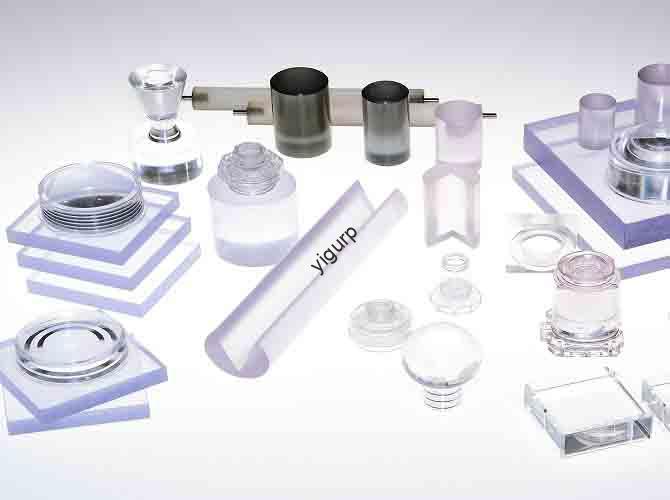
Transparent resin printing is a type of stereolithography (SLA) or digital light processing (DLP) 3D printing. It uses clear or semi-clear photopolymer resin to create objects that can transmit light. Unlike standard opaque resins, which are filled with pigments to block light, transparent resins are specially formulated to minimize light scattering. This allows light to pass through the print rather than being absorbed or reflected.
At its core, the process works like other resin 3D printing methods. A light source, either a laser for SLA or a projector for DLP, cures thin layers of liquid resin one by one, building the object from the bottom up. The key difference with transparent resin is its composition. Most include special additives that reduce internal cloudiness, and some are even designed for specific uses like high-temperature resistance or food safety.
A Real-World Example: Last year, I worked with a jewelry designer who wanted to create clear pendant charms. Her first attempts using a generic transparent resin resulted in foggy prints that looked cheap. After switching to a specialized “high-clarity” resin and adjusting her printer’s layer height from 0.1mm down to 0.05mm, her prints became nearly as clear as glass. She later added a final polish with a microfiber cloth and a UV-resistant clear coat, and now her charms sell out within days. This shows how small changes to materials and settings can completely transform your results.
How to Choose the Right Transparent Resin?
Not all transparent resins are the same. Choosing the wrong one can lead to frustration, wasted material, and subpar prints. Here are the critical factors to evaluate.
1. Clarity Level
Clarity is measured by light transmittance, which is how much light passes through the material. Most transparent resins have a transmittance rate between 80% and 95%. For comparison, standard window glass is around 92%. You should look for resins labeled “high clarity” or “ultra-transparent” if you need maximum light passage, for example, for lenses or display cases. Avoid resins labeled “semi-transparent” or “frosted” unless you specifically want a matte finish.
2. Mechanical Properties
Consider what your print will actually be used for. If you are making functional parts like a phone case, you need a resin with high impact resistance. If the part will be exposed to heat, like a lamp shade, look for a resin with a high heat deflection temperature (HDT) , ideally at least 60°C. If you are making items like candy molds, you must use an FDA-approved food-safe transparent resin.
3. Compatibility with Your Printer
Transparent resins work with most SLA and DLP printers, but you should always check the resin’s viscosity and the recommended light wavelength. Most consumer printers use a 405nm wavelength light source, which is the standard. However, some specialized resins might require 385nm or 395nm.
Here is a comparison of some popular transparent resins available in 2024:
| Resin Brand & Model | Clarity (Light Transmittance) | Impact Resistance | Heat Resistance (HDT) | Food Safe? | Best For |
|---|---|---|---|---|---|
| Elegoo Ultra Transparent | 90% | 2.5 kJ/m² | 55°C | No | Miniatures, Decorations |
| Anycubic Clear Resin Plus | 92% | 3.0 kJ/m² | 60°C | No | Functional Parts, Lenses |
| Formlabs Clear Resin | 93% | 2.8 kJ/m² | 70°C | No | Professional Prototypes |
| Siraya Tech Fast Clear | 88% | 3.2 kJ/m² | 65°C | No | Fast Prints (Low Curing Time) |
| Anycubic Food-Safe Resin | 85% | 2.2 kJ/m² | 50°C | Yes | Molds, Kitchen Items |
How to Optimize 3D Printer Settings for Transparent Resin?
Even the best resin won’t perform well if your printer settings are off. The goal here is to minimize layer lines, which cause cloudiness, and ensure even curing, which prevents spots or discoloration. Here are the most important settings to adjust.
1. Layer Height
Layer height directly affects clarity. Thicker layers create more visible lines, while thinner layers result in smoother surfaces. For transparent prints, a recommended layer height is 0.025mm to 0.05mm. This is much thinner than the 0.1mm often used for opaque resins. Thinner layers do take longer to print, but they drastically reduce the amount of post-processing needed.
2. Exposure Time
Getting the exposure time right is critical. Under-curing leads to soft, cloudy prints that may not fully harden. Over-curing causes brittleness and an undesirable yellowing effect. As a general guideline, set your normal layer exposure between 8 and 15 seconds. It is always a good idea to test this with a small sample print first. If the surface feels sticky after cleaning, you need to increase the exposure time.
3. Build Plate Adhesion
Poor adhesion can cause your print to shift or fall off the build plate mid-print, ruining the job. To avoid this, always clean your build plate thoroughly with isopropyl alcohol (IPA) before every print. In your slicer software, tilt your model at a 15-30° angle. This reduces the surface area in contact with the build plate and also minimizes the marks left by support structures.
4. Support Structures
Supports are necessary for overhangs, but they can leave marks that ruin clarity. A good strategy is to use tree supports instead of linear supports. Tree supports have smaller contact points, which makes them easier to remove without damaging the print. You should also try to place supports on less visible areas of your model, like the bottom or back.
What Is the Secret to Post-Processing for Crystal-Clear Prints?
Post-processing is where transparent prints go from “good” to absolutely “great.” Skipping steps like proper cleaning or polishing will leave you with cloudy, dull objects. Follow this step-by-step workflow for the best results.
- Step 1: Clean the Print Thoroughly. Uncured resin left on the surface is a major cause of cloudiness. Remove the print and soak it in 99% isopropyl alcohol (IPA) for 5-10 minutes. Use a soft brush to gently scrub any hard-to-reach areas. Then, rinse it in fresh IPA and pat it dry with a lint-free cloth.
- Step 2: Cure the Print Evenly. Use a dedicated UV curing station if you have one. Follow the time recommended by your resin manufacturer, which is typically between 2 and 5 minutes. Be careful not to over-cure, as this causes yellowing. It is a good idea to rotate the print halfway through to ensure all sides get equal light.
- Step 3: Polish to Remove Layer Lines. Polishing is what gives the print its final glass-like clarity. Start with 400-grit sandpaper and wet sand to remove the largest layer lines. Then, move progressively to 800-grit, 1200-grit, and finally 2000-grit sandpaper. For a truly glass-like finish, finish with a plastic polishing compound and a soft microfiber cloth.
- Step 4: Apply a Clear Coat (Optional). For extra protection against UV light and to add a final layer of shine, you can spray the print with a UV-resistant clear coat. Apply 2-3 very thin coats, holding the can about 6-8 inches away, and let each coat dry completely.
What Are Common Problems with Transparent Resin Prints and How Do You Fix Them?
Even experienced users run into issues. Here are the most common problems, their causes, and the solutions.
| Problem | Cause | Solution |
|---|---|---|
| Cloudy / Foggy Prints | 1. Uncured resin residue left on the surface. 2. Layer height is too thick. 3. The print was over-cured. | 1. Clean more thoroughly with 99% IPA. 2. Reduce your layer height to 0.03mm. 3. Shorten your curing time by 1-2 minutes. |
| Yellowing | 1. The print was over-cured. 2. The print is exposed to too much sunlight. 3. You are using a low-quality resin. | 1. Follow the resin’s recommended curing time exactly. 2. Store finished prints in a dark place. 3. Use a UV-resistant resin from a reputable brand. |
| Layer Separation | 1. The exposure time is too low (under-exposure). 2. The build plate is dirty, causing poor adhesion. 3. The resin is too cold. | 1. Increase your normal layer exposure time by 2 seconds. 2. Clean the build plate thoroughly with IPA. 3. Warm the resin to 25-30°C before printing. |
| Air Bubbles in Print | 1. The resin was not degassed before printing. 2. The print speed is too fast. 3. There were bubbles in the resin tank. | 1. Degas the resin in a vacuum chamber, or stir it gently and let it sit for 30 minutes. 2. Reduce your print speed. 3. Gently tap the tank to release bubbles before starting. |
Conclusion
Getting perfect transparent resin prints is a skill that combines the right materials, precise printer settings, and careful post-processing. It starts with selecting a high-clarity resin that matches your project’s needs for strength or flexibility. It continues by optimizing your printer with thinner layer heights and correct exposure times to minimize defects. Finally, it is the post-processing—the meticulous cleaning, even curing, and progressive polishing—that transforms a good print into a stunning, crystal-clear object. By following this structured approach, you can avoid common pitfalls and create professional-quality transparent parts every time.
FAQ
Can I use transparent resin in an FDM 3D printer?
No, you cannot. FDM printers use solid filament, not liquid resin. Transparent resin is specifically designed for SLA or DLP printers, which use a light source to cure liquid photopolymer.
How long do transparent resin prints last?
With proper care, they can last a very long time. If you store them away from direct sunlight and avoid exposing them to harsh chemicals, transparent resin prints can last 5 to 10 years. Using a UV-resistant clear coat can help prevent yellowing and extend their life even further.
Is transparent resin more expensive than opaque resin?
Yes, typically it is a bit more expensive. On average, a high-quality transparent resin can cost 20-30% more than a standard opaque resin.
How do I fix a transparent print that has already turned yellow?
If the yellowing is mild, you might be able to polish it out. Try wet sanding the surface with very fine 2000-grit sandpaper, followed by a UV-resistant plastic polish. If the yellowing is severe, unfortunately, the best solution is to re-print the part and be more careful with the curing time.
Discuss Your Projects with Yigu Rapid Prototyping
Are you ready to create stunning, crystal-clear parts with transparent resin? At Yigu Rapid Prototyping, we have extensive experience with high-quality resin printing. We can help you with everything from material selection and design optimization to producing flawless, finished parts. Whether you need a single prototype or a small batch of custom pieces, our team is here to help.
Contact Yigu Rapid Prototyping today to discuss your project. Let’s build something great together.