
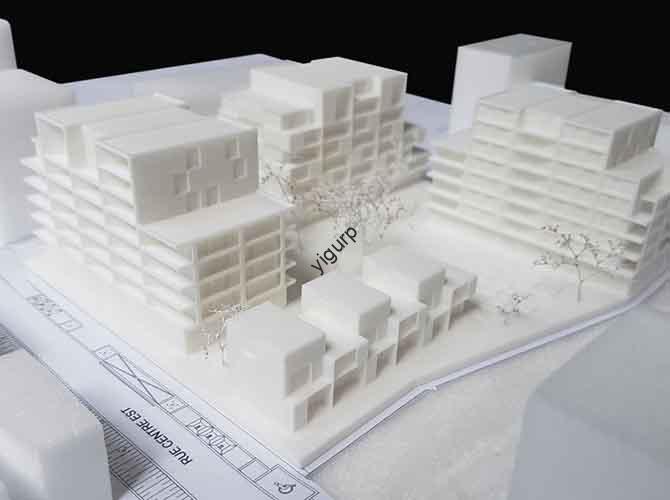
The OBJ (Object) file format is a versatile, open standard capable of preserving not only 3D geometry but also crucial surface details like color, texture, and material data, making it superior to STL for complex, high-fidelity prints. While STL files describe a shape using a mesh of triangles, OBJ files can use polygons and precise mathematical curves, store multiple objects in a single scene, and link to external texture libraries. This guide will help you understand when to use OBJ, how to master its workflow, and how to troubleshoot common issues to unlock its full potential for your 3D printing projects.
Introduction: Moving Beyond the Basic Mesh
If you’ve ever printed a detailed model only to find it came out as a bland, single-color object despite your beautifully textured digital design, you’ve experienced the limitations of the STL format. The 3D printing OBJ format was created to solve this exact problem. Originally developed for advanced computer graphics, OBJ has become a powerhouse in 3D printing for projects demanding visual richness and precision. It acts as a comprehensive container, holding the shape of your model and instructions on how to color and texture its surface. This guide demystifies the OBJ format, providing a clear path from its technical structure to practical, print-ready application.
What Exactly Is Stored Inside an OBJ File?
An OBJ file is a human-readable text file that describes a 3D model through a series of straightforward commands. Understanding these components is key to troubleshooting and optimization.
The core elements are defined line by line:
- Vertices (
v): These lines define the X, Y, and Z coordinates of every point in your model. They are the foundational “dots” in a connect-the-dots picture of your object. - Texture Coordinates (
vt): This is where OBJ’s power begins. These lines map 2D image textures (like a wood grain or a decal) onto the 3D vertices, telling the software how to “wrap” the image around the shape. - Vertex Normals (
vn): These define the direction each vertex faces, which is critical for calculating how light interacts with the surface, affecting shading and smoothness in renders and some slicing software. - Faces (
f): These lines connect the vertices to form the polygons (typically triangles or quads) that make up the model’s surface. A single face line references the indices for a vertex, its texture coordinate, and its normal (e.g.,f 1/1/1 2/2/1 3/3/1).
Crucially, an OBJ file often works in tandem with a Material Template Library (MTL) file. This companion file, referenced within the OBJ, defines surface properties like color, transparency, shininess, and—most importantly—which texture image files to apply.
What Are the Key Advantages of Using OBJ for 3D Printing?
Choosing OBJ over simpler formats like STL or even AMF/3MF is a strategic decision driven by specific project needs.
1. Superior Support for Color and Texture Mapping
This is OBJ’s standout feature. If you are printing on a multi-material or full-color 3D printer (such as those using binder jetting, material jetting, or segmented FDM), OBJ is often the preferred format. It can define different materials or colors for different faces of the model by referencing multiple materials in the MTL file. For example, a model of a smartphone can have a black OBJ body, a silver OBJ bezel, and a separate texture map for the screen graphic, all defined in one OBJ/MTL package.
2. Preservation of High-Fidelity Geometry
While STL approximates curved surfaces with flat triangles (leading to the “faceted” look if resolution is low), OBJ can natively support curved surface definitions (via NURBS or Bézier surfaces, though this is less common in printing workflows). Even when using polygons, the ability to define smooth vertex normals allows slicers and rendering engines to display and sometimes process the model with the appearance of a smoother surface than the polygon count would suggest.
3. Scene and Multi-Object Structure
A single OBJ file can contain multiple distinct objects, each positioned in space relative to each other. This is incredibly useful for printing pre-arranged build plates or multi-part assemblies in a specific orientation. You can export an entire scene—a knight figurine on a base, for instance—as one OBJ file, maintaining their spatial relationship without manual assembly in the slicer.
4. Widespread Software Compatibility
As one of the oldest 3D formats, OBJ enjoys near-universal import/export support across the entire digital pipeline. From professional CAD and sculpting software (SolidWorks, Blender, ZBrush) to game engines and, importantly, most slicing software (Ultimaker Cura, PrusaSlicer, Chitubox), OBJ is a reliable intermediary. This makes it an excellent choice for collaborative workflows where files move between different tools and users.
How Does OBJ Compare to Other Common 3D Printing Formats?
To make an informed choice, you must understand the format landscape. The table below provides a clear comparison.
| Feature | OBJ (.obj) | STL (.stl) | 3MF (.3mf) |
|---|---|---|---|
| Geometry Type | Polygons (triangles, quads) & optionally curves. | Triangles only. A faceted approximation. | Polygons (triangles, quads). |
| Color/Texture Support | Yes, via external MTL and image files. | No. Geometry only. | Yes, with color/texture embedded within the single file. |
| Multi-Material/Part | Yes, can define multiple materials and group objects. | No. One material per file. | Yes, comprehensive support embedded in the file. |
| File Structure | Human-readable text (ASCII) or binary. Simple to debug. | ASCII or binary. | Zipped XML-based container. Not human-readable. |
| Precision & Accuracy | High precision. Can suffer from rounding errors in text format. | Can suffer from rounding errors and “holes” in meshes. | High precision, designed to avoid common mesh errors. |
| Primary Use Case | High-detail visual models, pre-colored prints, multi-object scenes. | Simple, single-material functional prototypes and parts. | The modern standard for rich, error-free printing data. |
The Verdict: Use STL for quick, simple, single-material prints. Use OBJ when you need pre-defined colors/textures for a multi-material printer or are moving models through a graphics-heavy pipeline. Use 3MF for a modern, all-in-one, error-resistant file that contains everything your print needs (colors, materials, multiple parts, slicing settings).
What Is the Recommended Workflow for Preparing an OBJ File for Printing?
To ensure a successful print, follow this optimized workflow:
- Exporting from Your Design Software:
- Ensure your model is “manifold” or “watertight” (no holes, non-manifold edges). Use your software’s 3D print checklist or repair tools.
- When exporting, choose “OBJ” and look for key options:
- Write Normals: Enable this.
- Include UVs/Texture Coordinates: Crucially, enable this if you have textures.
- Triangulate: Many slicers prefer triangles. Enable this unless you have a specific reason not to.
- Always keep the generated
.mtlfile and any texture images (.jpg,.png) in the same folder as the main.objfile. Moving the OBJ without its companion files will strip its color data.
- Importing and Checking in a Slicer:
- Open your slicer and import the OBJ. Visually verify that colors or textures appear as expected.
- If colors are missing, the slicer cannot find the MTL or texture files. Ensure they are in the same directory.
- Use the slicer’s “Layer View” or inspection tool to check for model errors. Most modern slicers like PrusaSlicer have excellent automatic repair functions for non-manifold issues.
- Slicing Considerations for OBJ Files:
- For full-color sandstone or binder jet prints, the slicer will use the vertex colors from the OBJ directly to instruct the printer.
- For multi-material FDM/FFF printing (e.g., a dual-extruder printer), you may need to assign extruders based on the material groups defined in the OBJ/MTL, or use the slicer’s painting tool to modify them.
- Slicing settings (layer height, infill, supports) are independent of the file format and should be chosen based on your model and material.
What Are Common OBJ File Issues and How Do You Fix Them?
Even with a robust format, problems can arise. Here’s a diagnostic guide:
- Problem: “My colors/textures are missing in the slicer!”
- Cause: The slicer cannot find the associated
.mtlfile or texture images. - Solution: This is the most common issue. Ensure all files (.obj, .mtl, .jpg/.png) are in the same folder. Do not rename them after export. As a test, try opening the OBJ in a simple viewer like Microsoft 3D Viewer first.
- Cause: The slicer cannot find the associated
- Problem: “The model imports at a huge scale or a tiny dot.”
- Cause: OBJ files are unitless. The software interpreting it (your slicer) makes an assumption about the unit of measurement (millimeters, inches).
- Solution: Know the units your modeling software used when exporting. Most slicers allow you to scale the model on import. If you designed a 50mm part and it imports as 50 meters, simply scale it by 0.001 (or 0.1%).
- Problem: “The file is enormous and slow to process.”
- Cause: The model may be excessively detailed with millions of polygons, or you may have exported in the verbose ASCII format.
- Solution: Use a 3D tool like Blender or Meshmixer to apply mesh decimation, reducing the polygon count while preserving shape. Re-export, choosing binary OBJ format if available, which creates a smaller file.
- Problem: “The slicer reports ‘non-manifold edges’ or holes.”
- Cause: The mesh geometry is flawed—faces might be missing, or edges might be shared by more than two faces.
- Solution: Use the automated repair tool in your slicer (e.g., “Fix model” in Ultimaker Cura) or a dedicated repair service like Netfabb (online or standalone) or Microsoft 3D Model Repair.
Conclusion: Embracing OBJ for the Right Projects
The OBJ format remains an indispensable tool in the 3D printing arsenal, particularly for projects where visual fidelity and color information are paramount. Its strengths in texture mapping, multi-material definition, and universal software support make it the go-to choice for full-color prints, detailed figurines, and complex multi-part scenes. However, for simpler functional parts, STL is often sufficient, and for a modern, all-inclusive file, 3MF is rapidly becoming the new standard. The key is to match the format to the task: use OBJ when your model’s surface appearance is as important as its shape, and always ensure you keep the entire file package (.obj, .mtl, textures) together. By mastering the OBJ workflow, you unlock a higher level of creative and technical expression in your 3D printed objects.
FAQ:
Q: Can I directly print an OBJ file on my 3D printer?
A: No, you cannot print an OBJ file directly. A 3D printer requires G-code, a set of machine instructions. An OBJ file must first be imported into slicer software (like Cura, PrusaSlicer, or ChiTuBox) which converts the 3D model into layered G-code that your printer can execute.
Q: Is OBJ or STL better for resin 3D printing?
A: For most resin prints, STL is perfectly adequate and often preferred due to its simplicity and wide support. However, if you are using a resin printer capable of voxel-based color or multi-material printing (an emerging technology), the printer’s specific software will dictate the required format, which could be OBJ or a specialized variant.
Q: How do I add color to an STL file and save it as an OBJ?
A: You need 3D editing software. Import the STL into a program like Blender. Then, you can “unwrap” the model to create a UV texture map, paint colors onto that map in a 2D editor, and assign the image as a texture. Finally, export the model as an OBJ, ensuring the “Include Textures” option is checked. This process requires some learning but is essential for creating colored models from neutral meshes.
Q: Why does my OBJ file look smooth in Blender but faceted in my slicer?
A: This is due to “smooth shading.” Software like Blender uses vertex normals to interpolate shading across faces, creating a smooth appearance. Most slicers ignore these normals and display the raw geometry. To get a truly smooth print, your model must have sufficient geometric resolution (polygon count) to approximate the curve, regardless of the format or shading.
Discuss Your Projects with Yigu Rapid Prototyping
Are you working on a project that demands the high visual fidelity and color accuracy that the OBJ format enables? Whether it’s a full-color architectural model, a detailed character figurine for product design, or a multi-material functional prototype, our team at Yigu Rapid Prototyping has the expertise and advanced equipment to bring your complex OBJ files to life.
We specialize in full-color binder jetting, multi-material jetting, and high-resolution stereolithography (SLA) that can perfectly reproduce the color and texture data embedded in your OBJ files. Our engineers can also assist with file optimization, mesh repair, and texture baking to ensure your model is not only visually stunning but also perfectly printable.
Contact us today for a consultation. Let’s discuss how we can transform your detailed OBJ designs into tangible, high-quality, and visually impressive 3D printed products.