
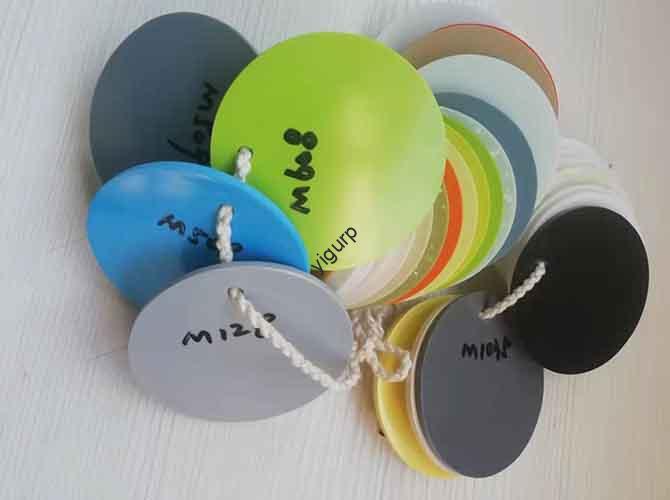
Today, turning a thought in your head into a real, touchable object feels like a superpower. 3D design and print make this possible. It’s a full process: start with a digital idea, end with a physical item built layer by layer. This guide teaches you everything—from your first design click to holding your finished creation. It connects design and printing, so you can move through each step with confidence.
Are Design and Print Connected?
Many people see 3D design and printing as separate. But they work together like two parts of one machine. A great physical object starts with a strong digital design. Understanding their link is your first key step.
One Unified Process?
3D design and print is one flowing workflow. It’s easy to focus only on the printer. But the process starts on a computer screen.
Think of it as brain and hands: design is the brain, printing is the hands.
Design (The Brain): This is your digital plan. It’s like a blueprint for a building. It shows every curve, surface, and measurement.
Save this model as an STL or 3MF file. Every choice here directly impacts your final print.
Print (The Hands): This is where your digital plan becomes real. The 3D printer follows your design to build layer by layer.
It melts plastic or hardens resin—all based on your pre-made digital guide.
Why Do They Depend?
Even the best printer can’t fix a bad design. A model with thin walls, holes, or impossible overhangs will fail to print. A successful print always starts with careful design.
Phase 1: Digital Design?
Your journey from idea to object starts digitally. This phase is about creating a printable 3D model. Learn basics and pick the right tools to avoid frustration and failed prints.
Pick the Right Software?
No single “best” software exists. The right tool depends on your goals, skill, and project type. Group options by user level to choose easily.
| Software | Best For | Difficulty | Cost | Key Feature |
|---|---|---|---|---|
| TinkerCAD | Beginners, simple shapes | Very Easy | Free | Browser-based, shape combination |
| Fusion 360 | Mechanical parts, prototypes | Medium | Free (Personal) | Parametric modeling, design history |
| Blender | Organic shapes, art models | Hard | Free/Open Source | Powerful mesh sculpting |
| SolidWorks | Professional engineering | Very Hard | High | Advanced testing, industry standard |
Key Design Rules?
You don’t need to be a pro to design for 3D printing. But you must know these critical rules.
- Watertight/Solid Models: Your model’s surface must have no holes. A non-solid model confuses the printer. Slicers need clear inside/outside lines.
- Wall Thickness: Every printer/material has limits. For FDM, aim for at least 1mm walls. Thin walls break or don’t print at all.
- Overhangs & Supports: Printers build from the bottom up. Use the 45-Degree Rule—steeper overhangs need supports. No supports = sagging or failure.
- Tolerances: Add 0.2-0.4mm gaps for moving parts. A 10mm peg won’t fit a 10mm hole. Bad tolerances = stuck or loose parts.
Phase 2: Connect Design & Print?
You have a great digital model. Now, how to get it to the printer? Slicing is the missing link. It translates your design into printer-friendly instructions.
What Does a Slicer Do?
A slicer is digital-to-physical translator software. It cuts your STL/3MF model into thin layers. Then it creates G-code—printer step-by-step instructions.
Top free slicers: Ultimaker Cura, PrusaSlicer, Bambu Studio. Focus on 3 key settings as a beginner.
- Layer Height: 0.2mm is a good start. Smaller (0.12mm) = smoother, slower. Larger (0.28mm) = faster, more visible layers.
- Infill: 15-20% is enough for most uses. Grid/honeycomb patterns work best. 100% = waste of time/material.
- Supports: Slicers auto-add supports for steep overhangs. Break them off after printing.
Slicing Workflow?
Follow these simple steps to slice your model:
- Import your STL/3MF file into the slicer.
- Position the model on the virtual build plate for stability.
- Adjust layer height, infill, and supports.
- Click “Slice” to generate G-code.
- Export G-code to SD card or send to your printer.
Pre-Print Checklist?
A final check saves you time and material. Run through this before hitting “print.”
- Position: Lay tall/thin models flat. Minimize overhangs to cut support needs. We once failed a tall print upright—laying it flat fixed it.
- Size: Double-check measurements. Ensure it’s not imported at the wrong scale (inches vs. mm).
- First Layer Sticking: Add a brim/raft for small-footprint models. They boost surface area and adhesion.
- Slicing Preview: Scroll through layers. Look for floating parts or gaps—fix before printing.
Phase 3: Physical Printing?
With a sliced G-code file, you’re ready for hardware. This phase uses printers and materials. Know your options to pick the right tools for your project.
Common Printer Types?
Hobbyists/small businesses use two main printer types: FDM and SLA. Each has strengths and weaknesses.
| Technology | Material | Best For | Pros | Cons |
|---|---|---|---|---|
| FDM | Thermoplastic Filament | Working parts, prototypes | Affordable, wide material variety | Visible layer lines |
| SLA | Photopolymer Resin | Miniatures, high-detail models | Smooth finish, fine detail | Messy post-processing, brittle |
Choose the Right Material?
Material defines your print’s strength, flexibility, and durability. Start with these easy options as a beginner.
- PLA: Best for beginners. Biodegradable (corn starch). Easy to print, no heated bed needed. Low cost, minimal warping. Perfect for decor and early prototypes. Most hobbyists use PLA.
- PETG: Step up from PLA. More durable, heat/chemical resistant. Flexible, less brittle. Food-safe (check specs). Great for phone cases and mechanical parts.
- Standard Resin (SLA): Captures fine details. Smooth finish. Needs washing (isopropyl alcohol) and UV curing. Brittle—good for miniatures/jewelry.
Real Project: Custom Phone Stand?
Theory is good, but practice builds confidence. Let’s design and print a custom phone stand. This walks you through the full workflow.
Step 1: Plan the Stand?
Goal: A stable vertical phone stand with a charging cable cutout. First, gather measurements.
We measured a phone in its case: 8.5mm thick. We chose a 12mm slot for flexibility.
Sketch ideas: A wedge shape works best. It’s stable and easy to model. Add a slot and cable cutout.
Step 2: Model in TinkerCAD?
TinkerCAD is perfect for this simple geometric project. Follow these steps:
- Drag a “Wedge” onto the workplane. Resize to 80mm wide, 70mm deep (main body).
- Create the phone slot: Add a 12mm wide “Box” (set to “hole”). Position it at an angle on the wedge. Group to cut the slot.
- Add cable cutout: Add a 20mm diameter “Cylinder” (hole). Position at the slot’s base. Group to cut.
- Export the model as an STL file.
Step 3: Slice the Model?
Use Ultimaker Cura for slicing. Focus on these settings:
- Position: Lay the stand flat (no supports needed).
- Layer Height: 0.2mm (balance of speed/quality).
- Infill: 15% (grid pattern—enough strength).
- Supports: Turn off (no steep overhangs).
Slice, preview layers, then export G-code to SD card.
Step 4: Print & Finish?
Use an FDM printer with PLA filament. Clean the build plate for good adhesion.
The print took ~2 hours. Let the build plate cool—PLA contracts and pops off easily.
Finish: Trim small plastic wisps with flush cutters. Test the phone fit—12mm slot works perfectly. The cable cutout fits charging cords.
Conclusion
3D design and print let you turn ideas into real objects. This guide walked you through the full workflow: digital design, slicing, and physical printing. You learned to pick tools, follow design rules, and complete a real project.
Remember: 3D design and print is about experimentation. Not every print will be perfect. Failed prints teach you about design limits, materials, and settings.
The barrier to entry is low. Start simple—like the phone stand. Download models, modify them, or create your own. The power to turn thoughts into things is now in your hands.
FAQ
Do I need design experience for 3D printing? No. Beginners can use TinkerCAD’s simple tools. Start with basic shapes and practice.
Which printer is best for beginners? FDM printers. They’re affordable, easy to use, and work with PLA (beginner-friendly material).
Why do my 3D prints fail? Common issues: bad design (thin walls/overhangs), poor slicer settings, or build plate adhesion. Use the pre-print checklist.
Is PLA or PETG better for beginners? PLA is easier. It’s cheaper, needs no heated bed, and has minimal warping. PETG is better for stronger parts.
What’s the difference between STL and 3MF files? Both are 3D model formats. STL is more common; 3MF stores more detail (like color/material).
Do I need a heated bed for 3D printing? Not for PLA, but it helps with adhesion. ABS/PETG need a heated bed to prevent warping.
Discuss Your Projects with Yigu Rapid Prototyping
At Yigu Rapid Prototyping, we specialize in 3D design and printing. Our team helps you pick software, optimize designs, and choose the right printer/materials. Whether you need prototypes, custom parts, or project guidance, we have the expertise to deliver. Contact us today to turn your 3D ideas into reality.