
We’ve all been there. You hit “print,” walk away, and come back to a spaghetti mess or a part that’s warped beyond recognition. More often than not, the culprit isn’t your design or the filament. It’s the first layer in 3D printing. This unsung hero isn’t just a starting line; it’s the essential foundation that determines whether your print succeeds or fails. Think of it like building a house: a weak foundation means cracks, instability, and collapse, no matter how beautiful the upper floors are. In this guide, we’ll walk through why that initial layer is non-negotiable, and I’ll share a straightforward, step-by-step system I’ve developed over years of prototyping to help you master it for good.
What Exactly Does the First Layer Do for Your 3D Print?
You might think the first layer is just there to stick the print to the bed. But it plays three critical roles that impact everything from strength to accuracy to final appearance. Missing any one of these can ruin hours of work.
Role 1: How Does the First Layer Act as the Structural Foundation?
The first layer is the literal base upon which every subsequent layer is built. Its primary job is to provide strong bed adhesion to prevent warping, shifting, or complete detachment mid-print. If adhesion fails, the print loses its anchor, leading to layer separation or a total collapse. For example, I once printed a tall, thin architectural model. The design was sound, but the first layer didn’t bond properly to the PEI sheet. By layer 50, the whole structure wobbled and peeled off—wasting 6 hours and a quarter-spool of filament. A well-adhered first layer ensures that the forces from the nozzle’s movement and the cooling of upper layers don’t overpower the print’s bond to the build plate.
Role 2: In What Way Does It Set the Precision Benchmark?
Every layer in a 3D print relies on the accuracy of the one below it. The first layer sets the dimensional benchmark for the entire part. Any error here—like being too thick, too thin, or uneven—gets compounded with each added layer. This is known as error accumulation. Let’s say your first layer is 0.05mm thinner than intended due to a slightly high nozzle. After 100 layers, your part could be a full 0.5mm shorter than designed. In functional parts like gears or engine mounts, that deviation can mean the difference between a perfect fit and a useless piece. I recall a client needing a batch of sensor housings with a tight ±0.1mm tolerance. We chased ghost issues in the slicing software for hours before realizing the Z-offset was calibrated 0.08mm too high. Correcting that first-layer height alone brought all subsequent parts into spec.
Role 3: Why Is It a Driver of Final Surface Quality?
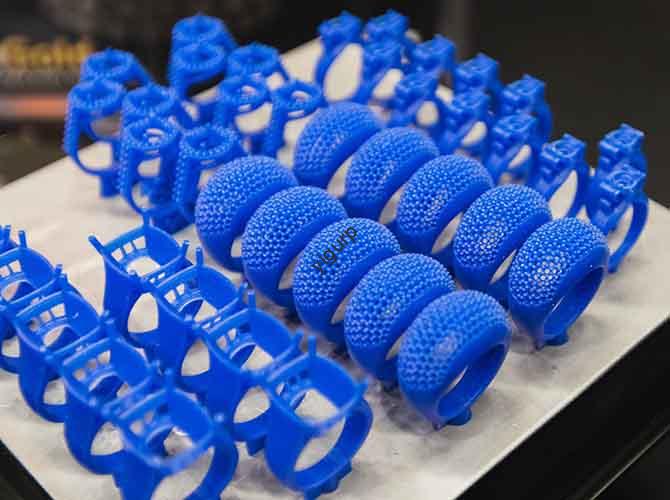
The bottom surface of your finished print is a direct mirror of the first layer. Imperfections like small gaps, over-extrusion blobs, or scratches get encapsulated or even magnified as the print grows. If you’re printing a display model or a part with a critical aesthetic surface, a flawed first layer means hours of sanding and post-processing. In one case, a jeweler was printing intricate resin masters for casting. A barely visible hairline crack in the first layer propagated upward, rendering an otherwise perfect ring model unsellable. A smooth, consistent first layer ensures the best possible surface finish right off the bed.
What Are the 3 Key Steps to Printing a Perfect First Layer Every Time?
Achieving a flawless first layer isn’t about luck; it’s a systematic process. Over the years, I’ve streamlined it into a three-step workflow that addresses the most common failure points. Follow this sequence religiously.
Step 1: How Do You Calibrate Your Print Bed Like a Pro?
This is the most important step, and you can’t skip it. Proper bed leveling and calibration ensure uniform material deposition.
- Achieve Perfect Bed Flatness: An unlevel bed is the #1 cause of uneven first layers. Use a feeler gauge or the classic paper method for manual leveling. For modern printers with auto-bed leveling (like BLTouch or CR-Touch), remember this: the probe compensates for warps but doesn’t fix them. Always manually level as closely as possible first, then let the sensor handle the micro-variations.
- Dial in the Nozzle Distance (Z-Offset): This is your secret weapon. The distance between the nozzle tip and the build plate determines how much the filament is “squished” onto the bed. We want a slight, consistent squish.
- Too high: The filament lays down round and doesn’t adhere well.
- Too low: The nozzle scrapes the bed, restricting flow and creating a thin, translucent layer.
- Ensure a Clean Adhesion Surface: Oils from your fingers are invisible adhesion killers. Clean your build surface with isopropyl alcohol (IPA) before every print. For glass or stubborn materials like PETG, a quick wipe with window cleaner can also work wonders.
Step 2: How Should You Select and Prepare Your Material for Success?
The right material, prepared correctly, eliminates a huge variable. Different materials have wildly different first-layer adhesion requirements.
The table below outlines key considerations for common materials:
| Material | Recommended Bed Temp | Recommended Bed Surface | Key Prep Step Before Printing |
|---|---|---|---|
| PLA | 50-60°C | Textured PEI, Glass (with adhesive) | Dry filament if humid (>40% RH). Wet PLA pops and bubbles. |
| ABS | 100-110°C | Smooth PEI, ABS Slurry | Mandatory drying for 4-6 hours at 80°C. Use an enclosure to prevent warping. |
| PETG | 70-80°C | Textured PEI, Garolite | Clean surface with IPA. Do NOT print on bare glass—it can fuse and crack it. |
| TPU | 40-50°C | Textured PEI, Blue Painter’s Tape | Ensure extruder path is clear and tension is correct to prevent under-extrusion. |
Expert Insight: Don’t underestimate filament drying. I’ve diagnosed more “bad first layer” issues to damp filament than almost anything else. Investing in a simple dry box or food dehydrator will save you immense frustration.
Step 3: What Are the Optimal First-Layer Slicer Settings?
Your slicer is where you translate theory into action. The first-layer settings are often distinct from the rest of the print.
- First Layer Height: A good rule is to set this to 90-100% of your nozzle diameter. For a standard 0.4mm nozzle, a first layer height of 0.2-0.3mm provides a great balance of adhesion and detail. A slightly thicker first layer can improve bed contact.
- First Layer Print Speed: Slow down! I typically run the first layer at 30-50% of my normal print speed. This gives the plastic more time to bond to the build surface under the heat. A speed of 20-30 mm/s is a reliable target.
- First Layer Temperature: It’s often beneficial to increase the nozzle and bed temperature by 5-10°C for the first layer only. This increases material flow and adhesion. Just remember to set it to drop back to normal on layer 2 to avoid heat creep on tall prints.
- First Layer Width (Extrusion Multiplier): Increasing the first layer width to 100-150% (often called “Elephant’s Foot Compensation” in reverse) can be a powerful trick. It makes the extruded line wider, increasing the surface area contact with the build plate for a stronger bond.
FAQ: Your First-Layer Problems, Solved
Here are quick, actionable answers to the most frequent first-layer issues I troubleshoot.
Q: My first layer corners are lifting (warping). What’s the fix?
A: This is classic warping caused by uneven cooling. Solutions: Increase your bed temperature by 5-10°C, ensure you’re using the correct build surface (see table above), use a brim (5-10mm) for extra adhesion, and most effectively, use an enclosure to eliminate drafts and maintain a stable ambient temperature.
Q: The first layer has gaps between lines (under-extrusion).
A: This usually points to a calibration or mechanical issue. First, check your Z-offset—you might be too high. Second, check for a partial nozzle clog. Finally, calibrate your extruder’s E-Steps to ensure it’s pushing the correct volume of filament.
Q: The nozzle drags through or scrapes the first layer.
A: Your nozzle is too close to the bed. Increase your Z-offset by 0.05mm increments until the scraping stops and the layer looks smooth. Also, check that your first layer height in the slicer isn’t set lower than your hardware can reliably achieve.
Q: Adhesion is great in the center but fails at the edges of the bed.
A: This is a clear sign of a warped or unlevel build plate. Re-run your manual leveling procedure, checking all four corners and the center. For persistent issues, consider installing a manual mesh leveling system (like a firmware upgrade for manual printers) to compensate for the warp.
Q: Can I use adhesive sprays or glue sticks as a crutch?
A: They are tools, not crutches. For materials like PLA on glass, a light coat of hairspray or a glue stick can be a great adhesion promoter. However, they should not be used to mask poor calibration. Always solve mechanical and calibration issues first, then use adhesives as a reliable enhancement.
Discuss Your Projects with Yigu Rapid Prototyping
Struggling with a first-layer in 3D printing challenge on a critical project? Or perhaps you’re moving from prototyping to production and need consistent, high-quality results? At Yigu Rapid Prototyping, we don’t just sell printers—we solve manufacturing problems.
Our engineering team lives and breathes additive manufacturing. We can help you:
- Diagnose persistent print issues related to adhesion, materials, or calibration.
- Select and optimize equipment for your specific material and precision needs.
- Transition your prototype into a reliable, scalable production process.
Let’s build a flawless foundation for your ideas together. [Contact our technical team] for a consultation.