
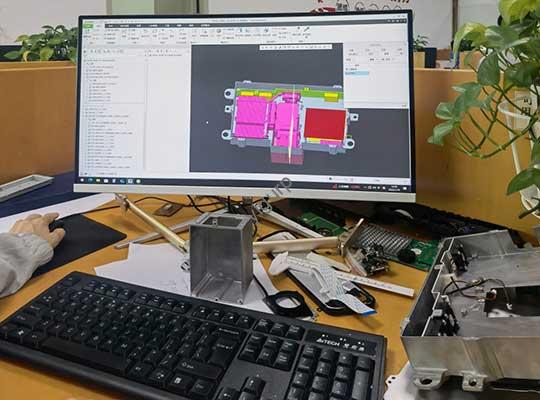
So you’ve got a 3D printer humming on your desk—or you’re about to pull the trigger on one. Exciting! But now comes the real question: how do you actually design what you want to print? Choosing the right 3D modeling software isn’t just a technical step; it’s the creative cockpit where your ideas take flight… or crash before they ever leave the ground.
I’ve been in product development and rapid prototyping for over a decade, and I can tell you this: the “best” software isn’t the one with the most features. It’s the one that disappears—the tool that lets you focus on your creation, not the interface. Whether you’re sketching a custom phone mount, engineering a functional gear, or sculpting an art piece, the right software aligns with your skill level, project goals, and budget.
In this guide, we’ll move beyond dry spec sheets. We’ll walk through the four most impactful 3D modeling platforms—SketchUp, SolidWorks, Creo (formerly Pro/E), and NX (formerly UG)—through the lens of real 3D printing outcomes. You’ll get a clear, honest look at their strengths, their hidden quirks, and exactly which one will get you from a blank screen to a successful print with the least friction.
Why Does Your 3D Modeling Software Choice Even Matter for Printing?
Let’s be clear: not all 3D models are created equal, especially for printing. A visually stunning model might be a nightmare to print—with unsupported overhangs, paper-thin walls, or non-manifold edges that make your slicer software scream.
The software you start with fundamentally shapes your entire workflow:
- Design Intent vs. Print Reality: Engineering software like SolidWorks builds in parametric dimensions and constraints, so your model is precise and easy to modify. Organic modeling tools might prioritize form, but struggle with the exact tolerances needed for interlocking parts.
- Workflow Efficiency: Some programs have direct STL export optimization and repair tools. Others require you to use third-party software to fix mesh errors before slicing, adding extra steps.
- Complexity Ceiling: Designing a simple box is one thing. But what about lattice structures for lightweight strength, or complex organic shapes? Your software’s core modeling technology sets your creative ceiling.
Think of it this way: your modeling software is the architect. Your 3D printer is the builder. You need clear, accurate, and buildable blueprints to avoid a collapsed house.
SketchUp: Is This the Fastest Way to Go From “Idea” to “In Your Hand”?
SketchUp is often the first tool people reach for, and for good reason. Its philosophy is the “digital pencil,” emphasizing speed and intuition over overwhelming precision.
What’s It Really Like to Use?
I’ve taught absolute beginners to model a basic house in under an hour with SketchUp. The push/pull tool is iconic for a reason: you draw a 2D shape and literally pull it into 3D. It’s incredibly satisfying and fast for conceptual work. The 3D Warehouse is a massive bonus—a library of millions of free models you can import and modify, a huge time-saver for common objects.
However, its polygon mesh-based modeling has a dark side for 3D printing. It’s easy to create models with holes, reversed faces, or non-watertight geometry (often called “non-manifold”). These will cause failures in your slicer. You must use its Solid Inspector extension or a separate repair tool like Netfabb before printing.
When Does SketchUp Shine for 3D Printing?
- Architectural Models & Terrain: Fantastic for printing building concepts, site plans, or simple landscape models.
- Basic Functional Parts: Drafting simple brackets, hooks, or boxes where exact tolerances aren’t critical.
- DIY & Home Hobbyist Projects: Customizing organizers, planters, or decorative items.
- The First 100 Hours of Learning 3D Modeling: Its low barrier to entry is unmatched.
A Quick Reality Check: I once helped a client who designed a beautiful intricate vase in SketchUp. It wouldn’t slice. The model had hundreds of tiny gaps invisible to the eye. We spent 4 hours repairing it. The lesson? For complex organic shapes, the right tool from the start saves days of pain.
The Verdict: SketchUp is your quick sketchpad. It’s perfect for beginners and projects where speed-to-concept is key. Just budget extra time for model cleanup before hitting “print.”
SolidWorks: Can This “Engineering Standard” Unlock Professional-Quality Prints?
If SketchUp is the sketchpad, SolidWorks is the fully-equipped engineering workshop. It’s a parametric, feature-based CAD powerhouse. This means you build your model with a history tree of steps (extrude, cut, fillet) defined by dimensions (e.g., “this hole is 10mm from the edge”). Change a dimension, and the entire model updates intelligently.
Why Do Professionals Swear By It for 3D Printing?
- Design Precision & Intent: You don’t just make a shape; you define how it’s made. This is critical for functional parts. Need a hole to be exactly 6.0mm for a bearing? It will be.
- Built-in Print Validation: SolidWorks has tools to check for minimum wall thickness, check for interferences in assemblies, and even simulate how a part might deform during the printing process (warping). This prevents costly print failures.
- Seamless Assembly Design: Creating a box with a lid that fits perfectly? You can model the lid and the box as separate components in the same file, ensuring a perfect clearance fit (like a 0.2mm gap for smooth movement).
A study by the University of Wisconsin-Stout on prototyping workflows found that using parametric CAD like SolidWorks reduced design-to-prototype iteration time by up to 35% compared to using direct mesh modelers for functional parts, due to easier modifications and better design intent capture.
Where SolidWorks Delivers Real-World Results
- Functional Prototypes & R&D: Gears, hinges, engine parts, drone frames—anything that must perform a mechanical task.
- Enclosures & Custom Mounts: Designing a case for an electronics project? The fit will be exact.
- Iterative Design: Got a test print and need to change a wall thickness? Update one number in the sketch, and your model is ready for the next print.
The Verdict: SolidWorks is the go-to for professionals and serious makers who need reliability, precision, and the ability to iterate quickly on functional designs. The learning curve is steeper, but the payoff in print success rate is immense.
Creo (Pro/E): Is Parametric Power the Secret to Complex, Manufacturable Prints?
Creo (the evolution of the legendary Pro/ENGINEER) is the granddaddy of parametric CAD. It shares DNA with SolidWorks but is often seen in more complex, high-end manufacturing environments (aerospace, automotive, medical devices). Its approach is highly disciplined and feature-rich.
What Makes Creo Different?
Its core strength is unshakable parametric control and robustness with complex surfaces. It handles the wild, sweeping curves of a car panel or an ergonomic handle as confidently as a simple block. For 3D printing, this means you can design highly aesthetic yet functional parts that are inherently “clean” and ready for manufacturing processes.
It’s also highly modular. You buy or license the specific toolkits you need—like Advanced Assembly for complex mechanisms or Simulate for thermal and stress analysis. This can be cost-effective for large companies with specialized needs.
The Creo 3D Printing Niche
- End-Use Parts & High-Value Prototypes: When your 3D print isn’t just a prototype but a final part for a low-volume production run (e.g., a custom medical guide).
- Hybrid Designs: Parts that combine complex organic shapes with precise engineering features.
- Seamless CAD/CAM/CAE Workflows: If your design process requires deep simulation (FEA, CFD) before printing, Creo’s integrated environment is a powerhouse.
The Verdict: Creo is for the professional working at the intersection of advanced design and manufacturing. If you’re printing parts that could one day be injection-molded or machined, Creo ensures your data is production-ready. It’s overkill for hobbyists but a strategic tool for specialized professionals.
Siemens NX (UG): Should You Use This “Industrial-Grade” Powerhouse for Your Prints?
Siemens NX sits at the absolute pinnacle of integrated CAD/CAM/CAE. Historically dominant in industries like mold making and automotive, its synchronous technology is a game-changer. It allows you to edit imported geometry (like a messed-up STL file from someone else) as easily as native models, blending parametric and direct modeling.
Why Consider NX for 3D Printing?
Its supreme strength is for tooling and manufacturing aids. Designing a conformal cooling channel inside a 3D printed mold insert? Or a complex, lightweight jig for assembling a product? NX has tools built specifically for these tasks. It doesn’t just think about the part; it thinks about how the part will be made and used.
For advanced 3D printing (like metal DMLS/SLM), NX offers generative design capabilities, where you define load paths and let AI create optimized, organic shapes that minimize material while maximizing strength—perfect for weight-critical aerospace components.
Is NX For You?
- Mold & Tool Designers: Creating 3D printed mold cores, cavities, or fixtures.
- Additive Manufacturing Engineers: Working with industrial metal or composite printers.
- Companies with a Digital Thread: Where the 3D printed prototype is part of a seamless digital product lifecycle that includes simulation, manufacturing, and quality control.
The Verdict: NX is specialized industrial artillery. It’s not just software; it’s a platform for enterprise-scale product development. For the average user, it’s massive overkill. But for its target audience, it’s an indispensable tool for pushing the boundaries of what can be designed and printed.
Side-by-Side: How Do Your Top Choices Stack Up for 3D Printing?
Let’s cut through the noise. This table isn’t about which is “best,” but which is best for you.
| Feature | SketchUp | SolidWorks | Creo | Siemens NX |
|---|---|---|---|---|
| Core Strength | Speed & Ease of Learning | Balanced Engineering & Usability | Parametric Rigor & Surface Mastery | Integrated Manufacturing & Advanced CAD/CAM |
| Best For These Prints | Concepts, Architecture, Simple Decor | Functional Prototypes, Mechanical Assemblies | Complex Aero/Auto Parts, High-End Prototypes | Molds, Tooling, Industrial End-Use Parts |
| Critical 3D Printing Tool | 3rd Party STL Repair Tools | Built-in Thickness Check, Interference Detection | Advanced Surface Quality Control | Generative Design, Conformal Cooling Design |
| Learning Curve | Very Gentle | Moderate (Structured) | Steep | Very Steep |
| Cost Implication | Low (Free web version) | High ($$$ Subscription) | Very High ($$$$) | Premium ($$$$$, often enterprise) |
| Ideal User Profile | Beginner, Hobbyist, Architect | Engineer, Product Designer, Advanced Maker | Design Engineer in Manufacturing | Additive Mfg. Engineer, Tooling Designer |
The Ultimate Decision Matrix: What Should YOU Choose?
Stop thinking about features. Start by asking yourself these questions:
- What is my primary goal?
- “I just want to make cool, decorative stuff and learn.” → SketchUp
- “I need to print parts that work—gears, mounts, prototypes that fit together.” → SolidWorks
- “I’m designing complex products for potential manufacturing.” → Creo
- “My prints are for industrial tooling or advanced additive manufacturing.” → Siemens NX
- What’s my true skill level & patience?
Be honest. The frustration of a steep learning curve can kill a project. Start where you can be productive quickly. You can always graduate. - What’s the real budget?
Don’t forget the hardware cost. SolidWorks, Creo, and NX need a powerful workstation with a professional-grade GPU. SketchUp runs on almost anything.
From Our Experience at YIGU Rapid Prototyping: We see thousands of client files. The most successful projects—the ones that move from prototype to product seamlessly—start with the right tool for the stage. We often recommend:
- Phase 1 (Concept): SketchUp or even Tinkercad for fast visualization.
- Phase 2 (Design & Fit): SolidWorks for engineering development and fit-testing.
- Phase 3 (Optimization & Manufacturing): Creo or NX for final validation and production preparation.
Your software is the foundation. A strong foundation leads to successful, reliable prints every time.
FAQ
Q: I’m a complete beginner on a budget. What’s my best free option to start 3D printing my own designs?
A: For a truly free and beginner-friendly start, SketchUp Free (web version) or Fusion 360 (for personal/startup use) are your top contenders. While we focused on SketchUp here for its sheer simplicity, Fusion 360 is worth mentioning as a powerful (and free for hobbyists) hybrid that combines parametric modeling with mesh editing, making it a fantastic next step after SketchUp.
Q: Can I use Blender (the free 3D animation software) for 3D printing models?
A: Yes, but with a major caveat. Blender is phenomenally powerful for organic, sculptural models (figurines, art, creatures). However, its core is not precision CAD. Creating a model with exact 10mm dimensions or a perfectly flat surface is unintuitive. It also requires meticulous manual cleanup to ensure the mesh is “watertight” for printing. Use it for art, not for engineering.
Q: How important is cloud-based vs. desktop software for 3D printing work?
A: It depends on your workflow needs. Cloud-based (like Onshape, a direct SolidWorks competitor) offers incredible collaboration, version control, and access from any computer. Desktop software (like SolidWorks/Creo) offers raw power, stability with large assemblies, and offline work. For individual makers, desktop is fine. For teams, cloud-based platforms are a game-changer.
Q: My software exported an STL file, but my slicer says it has errors. What now?
A: This is extremely common, especially with mesh modelers. Don’t panic. Use a free dedicated repair tool. Ultimaker Cura has a basic built-in repair function. For more serious issues, 3D Builder (Windows) or Meshmixer are excellent free options that can automatically fix non-manifold edges, holes, and inverted normals.
Discuss Your 3D Printing & Prototyping Projects with YIGU
Choosing software is just the first step. The real magic happens when your digital model meets the physical world. That’s where expertise in materials, print technology, and design-for-manufacturability makes all the difference.
At YIGU Rapid Prototyping, we don’t just print files; we partner in product creation. Our engineers have used every software discussed here and can provide feedback on your designs before you print, saving you time, material, and frustration.
Let’s bring your idea to life. Get a free project review and quote today.
- We specialize in: Functional Prototypes, End-Use Parts, Jigs & Fixtures, and Low-Volume Production.
- Technologies: FDM, SLA, SLS, Metal 3D Printing, CNC Machining, and Vacuum Casting.
- Your benefit: Direct feedback from our engineering team on how to optimize your design for strength, cost, and manufacturability.
Ready to move from pixels to parts? [Contact our technical team] for a consultation. Send us your SketchUp, SolidWorks, Creo, or NX file, and let’s discuss how to make it a reality.